Choose a streaming title with the accessibility track you need
Check audio description, language and playback controls before gathering around a screen.
A title can carry several audio and text tracks under one thumbnail. One version may describe visual information in the soundtrack, while another version of the same title in a different market may have a different set of tracks. Look for an accessibility detail in the title’s listing and verify it using the exact device and profile planned for playback.
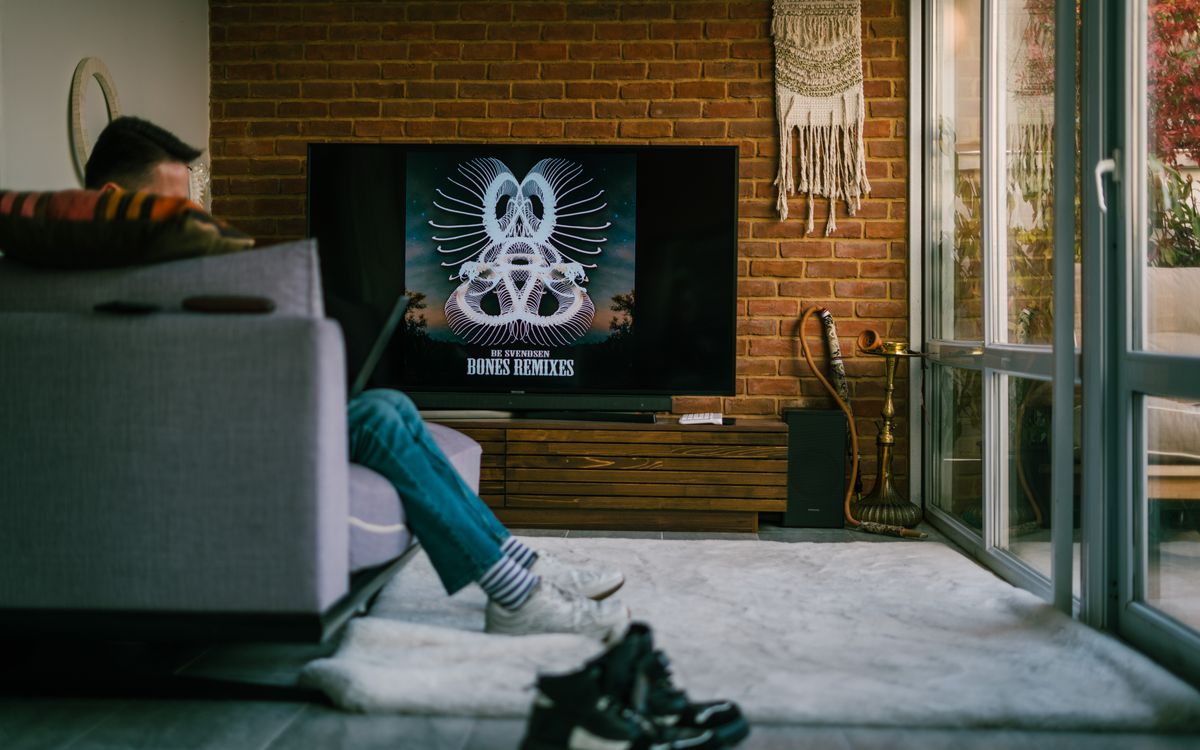
A living room makes these choices visible. One person wants to hear the description in a film that depends on visual jokes. Another needs to keep the original spoken language and read a caption when someone speaks quietly. A household may watch on a television with a remote they rarely use or cast from a phone on which they already know the controls. The work happens before pressing Play for everyone. Find which edition of the title is available and try the audio and caption setup in the same room.
Know the track’s job
An audio description track makes visual cues available through narration. A caption track conveys speech and relevant sound cues in text. A translated subtitle may prioritize dialogue. The W3C’s media guidance provides a useful way to distinguish these features. If several are needed in the same room, test whether the player can run the desired tracks together.
Audio description can tell a listener who has walked in, where a look is directed or what an on-screen message reveals. It may be part of an alternate soundtrack, built into the main media or delivered in another form the player must support. The terms “audio description,” “described video” and “video description” can appear in different places. Some devices indicate a label next to the language. If you see more than one track with the same spoken language, read the entire label. A selected alternate language can otherwise be confused with the audio description version for a different audience.
Captions may include sound cues, the identity of an off-screen speaker or lyrics with narrative meaning. Subtitles translated into the viewer’s language may serve a different use. Text size, alignment, background and timing matter when the caption is seen across a living room. Ask the people watching which controls they use. A short subtitle might overlap a title already present in the picture. A player may offer style options that make the behavior more comfortable for a given screen. Try one scene under the intended viewing conditions and measure the result by whether people can follow it.
Start with the title, then test the playing device
Labels in a catalogue provide a first clue. Open the title details and look for audio, language or accessibility information. A series can differ between episodes if the distributor replaced a particular version or has only released some tracks. A rented version and an included version can also present different detail pages. When possible, check the exact title and episode in the actual player before gathering a group. If a track is advertised and does not appear, record the title, service, app version, device and profile for a useful report to the provider.
Follow the same steps if switching screens. The phone app may open a different menu after casting and may choose another audio path according to the playback device. Start a scene that contains recognizable visual action and confirm the intended voice. Test captions where the room lighting and distance are typical. If you are using a television remote, know how to dismiss the player settings without resetting the title. Leaving instructions near the remote can help a visitor repeat the choice without navigating unrelated settings.
Listen to the soundtrack you selected
Audio description often fits into pauses in dialogue. A minute of continuous conversation may contain very little extra narration. Choose a moment with an establishing shot, a physical action or an important visual transition to check it. Listen for whether dialogue, the description and background action can all be heard at the intended volume. A television with a soundbar or a separate headphone path can output those sound channels differently. If the volume balance changes when the track changes, adjust listening equipment at a comfortable setting and repeat the same scene.
Separate access to the media from access to the controls. A screen reader enabled at system level may help someone navigate the device, but the player’s controls still need clear focus and announced labels. Check whether the user can locate the player, the track menu and the return path without waiting on another person. If the same show is watched repeatedly, verify whether the selection is retained. An accessibility preference on one streaming profile can be distinct from the television’s own preference. These two places are worth reviewing when a device changes hands or behaves differently after an update.
Make the control easy to reach
Start a short section, open the audio and subtitle menu and find the track in the preferred language. Test resume after going back to the title menu. On a shared device, a profile setting can affect later playback. Try the remote controls and volume before the rest of the audience arrives. The best preparation is to play a real scene and confirm that everyone can follow the action.
Consider the other materials that travel with the video
A filmed tutorial may be easier to follow with an official transcript or written steps, especially if the visual demonstration moves quickly. In some educational videos, a talking presenter names every relevant action as it happens, which can make a separate description less necessary for that example. Other presentations rely on a slide or a demonstration that no one mentions aloud. Find the materials connected with the exact version and let the viewer choose which serves the task. A transcript and an audio track generally solve different scheduling and playback needs.
For group classes and workplace screenings, ask about accessibility needs through the ordinary private planning route. Share the title and playback details ahead of time if possible. If a requested track is unavailable, choose another version of the same material or find a suitable alternative that the participants can verify. A delayed search just before the meeting may leave few choices. Starting while you can still change the plan improves the chance everyone will be able to take part from the opening scene.
Save the few details worth reusing
If the result works, write down the device and playback route along with the name of the option as it appears. Keep the instructions short enough for someone to follow with the remote in hand. If an update changes the menus, search the service’s up-to-date support page and then practice on a show that has the feature confirmed. For day-to-day viewing, two minutes of preparation is often enough. The measure is whether people at the screen can access the intended meaning, hear or read the material comfortably and return to the controls when they choose a different title.
Test downloads and offline players in advance
If you plan to watch away from a stable connection, use the service’s supported download path on the equipment you will carry. Open the exact title offline using the installed player and check which tracks are available. Download settings can affect which language versions are included, and a plan may limit what remains available offline. If you expect to use headphones, pair them while you are able to adjust both the application and operating system. Keep enough time to download a suitable alternative while the connection still works. An offline file that opened yesterday can still expire according to the service’s terms, so look for its access window before relying on it for a long trip.
For a locally stored authorized video, find out whether the captions or description are part of the media or travel in associated files. Some playback apps select tracks from the container, while others load sidecar captions based on a compatible file format or naming rule. Keep the related files together and test with the application you expect to use. A portable copy can lose access to accompanying materials when a folder is split or renamed. Keep a short record of the original access instructions when supplying material to another authorized viewer.
Notice changes between titles with the same name
An abridged cut, an older release or a remake may appear next to the intended title. Search for the release year and the expected episode or season. Compare languages and track information on the details page. A service might also change what it distributes when a catalogue agreement changes. If a known track disappears, look for the exact title through the original provider’s support rather than searching for settings alone. Record when you observed the change. Useful feedback distinguishes a missing option from a title no longer being available in the expected version.
Give viewers enough control to pick how the show runs in their own room. Ask whether to keep narration, captions or both for the next episode. If people want different output, test any officially supported personal audio route and verify how it affects the other listeners. Sometimes two different viewings are easier than trying to match everyone’s preferences at once. An accessible screening starts with track availability and ends with real people able to follow the same story at a comfortable pace.
Keep that result with the title details so other viewers can reproduce it later.