What a guest Wi-Fi network does for a busy household
Give visitors practical internet access while keeping shared devices under household control.
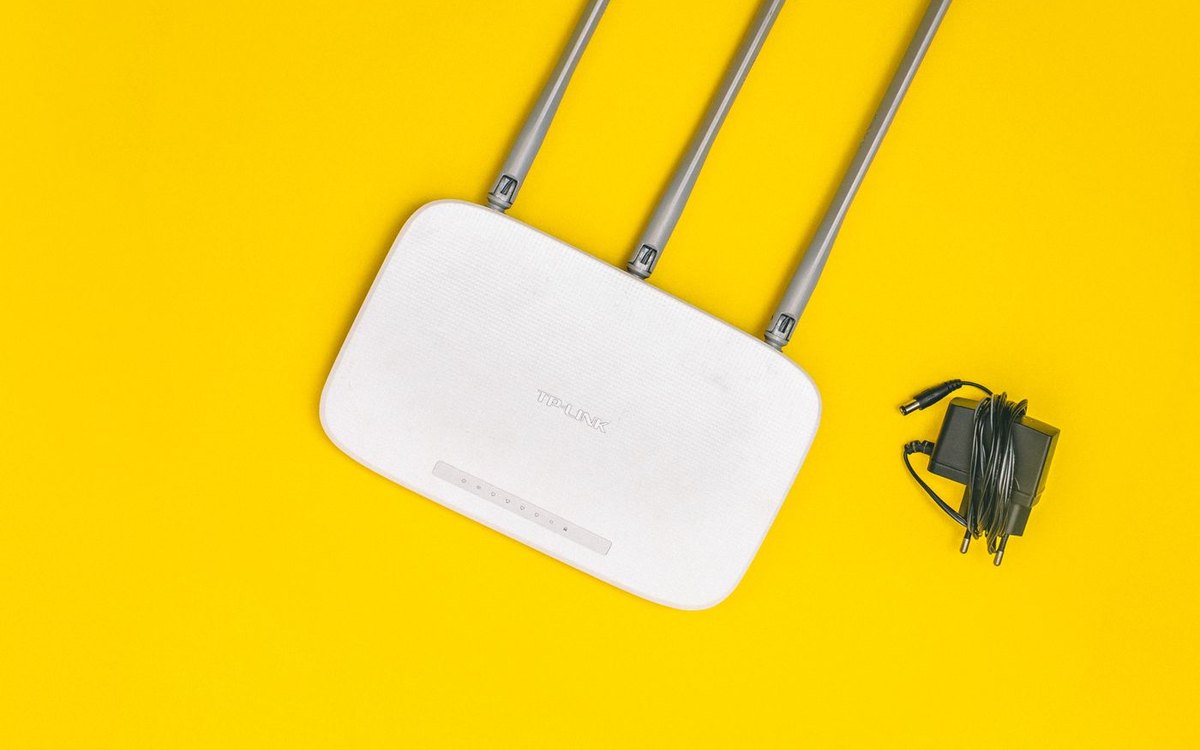
A guest network can spare everyone the familiar scene of reading a long password aloud. It also gives you a place to change visitor access without reconnecting every household device. Check whether the router actually isolates guest clients from your local network. A separate network name can exist without the level of isolation you expect.
Test as a guest
Connect a phone to the guest network and turn off mobile data briefly for the test. Open a website and try the household printer or casting target using the usual app. Decide whether that result suits your home. Some visitors may need a cast session during a party, while a family laptop and its shared files can remain on the primary network. Router controls may also isolate guests from one another, which affects how two visiting devices can collaborate.
Plan for the next visit
Choose a strong guest password that you can share through a QR code or the operating system’s sharing feature. Keep router administration separate and use its supported update process. Visiting devices can remain connected long after an event if the settings stay unchanged. When you change the credential, record where it is posted and replace the old copy. A guest network should make saying yes to reasonable access easier.
Decide what a visit looks like
Start with three different people: someone who wants to check a train schedule, someone who wants to play music through a room speaker, and someone staying overnight who will work on a laptop. All three need internet access. The second also needs one shared device, at least for a while. Ask which of these situations actually occurs in your home. A system that allows a specific television to be shared can fit one household, while a simpler internet-only network is enough for another. The settings should reflect the people and equipment you expect to have in the room.
Think about devices that need to stay away from the visitor’s view. A family computer with shared folders, a camera and a network storage device are common examples. Keep the list short enough to test. If several residents use the network, have one of them explain how a guest should join and which shared functions should be available. This often exposes a difference in expectations. The person who manages the router may assume the guest name is for internet access only, while somebody who hosts regularly expects to offer the living-room screen and printer. The conversation is easier before anyone hands over a password.
Read what the router means by “guest”
Look up the exact model, since the same label can describe different capabilities. Google’s instructions for supported home Wi-Fi products let the owner select certain shared devices. ASUS documents a separate setting for access to the internal network on some models. Other products offer an internet-only profile, per-device permissions or a setting that isolates devices from others on the same guest network. Check whether the feature works on all access points in your setup and under the mode the hardware is currently using. A wireless system running as an access point can behave differently from the same system when it handles the routing job.
When you read the options, distinguish access to the main network from access between guests. For example, two visiting computers might have internet access while being unable to communicate with each other. That can be desirable when several unrelated people are connected. It could also affect the two guests who planned to transfer a presentation over a local connection. Read the device documentation and test using equipment you own or have permission to use. A setting called “isolation” does not predict the precise behavior of every discovered service on every setup.
Check an ordinary session from both sides
Use a spare phone or an ordinary device that can act as the visitor. Turn off mobile data temporarily so a web page cannot silently arrive through cellular service, then join the guest network by its new name. Open a familiar website and repeat from a second location where visitors will sit. If you have mesh equipment, try the places normally reached by two different access points. Record whether the guest connection is available and whether the page actually loads. Check the main network again on a resident’s device so you spot disruption to everyday services as you set up the new ones.
For the shared device test, use the app a visitor would normally open. Pick a known output, such as a television playing a test track, without enabling broad access to other devices. If that output is meant to be private, check that it is unavailable to the guest device and remains usable from the resident’s network. Test the small number of functions from your original list. If a resident needs to share an occasional photo, letting that resident display it from a device they already control may be easier than changing general network permissions. If a supported sharing feature exists and is useful, verify it explicitly and document its name.
Make the password relatively easy to share
Choose a network name that guests can tell apart from the main name and from neighboring connections. Avoid putting an address, a phone number or any sensitive information in the name itself. Set a strong separate password and use the encryption that is currently recommended for your router and supported by the devices that need it. A printed QR code can simplify entry if you intend it for the people who visit. Scan it yourself after generating or sharing it and check that the phone joins the expected network. Some visitors will prefer the network name and password in ordinary text, so have a way to provide them.
Remember that a printed code or a saved message can outlast a visit. Treat a QR code as a copy of the credential, because anyone who gets it may be able to use it until it changes. Keep it in a place you intend guests to see. When the passphrase changes, remove the old slip and update any saved instructions. For the control app, use the router manufacturer’s current guidance and put the administrative sign-in in the resident’s normal secure storage. Sharing Wi-Fi access should never require handing over the account that manages the network itself. People who can answer a visitor’s question should know the guest credential and how to confirm the correct network name.
Plan changes that a household can repeat
Choose how long you expect to keep the guest network available. Some homes use it continuously. Others turn it on when visitors stay. If a system offers supported scheduling, check what happens to someone still connected when the schedule ends. Decide when credentials should change, such as after a large event where the password was posted widely or when you no longer want former visitors to reconnect. Test that an ordinary device with an old saved password fails to rejoin and that the new password works. Verify the main network after any change that modifies a connection profile shared by multiple access points.
Permanent household equipment deserves a separate decision. It can be tempting to put a difficult appliance on the guest network simply because that name is easy to share. Isolation and changing credentials may break a regular control app, or an accessory may need local access to a hub. Check the device’s requirements and the home system’s supported way to separate devices before using that strategy. Keep a short record of what stays on each network. When a device drops out after a credential change, the record helps determine whether the disconnection was expected or whether its setup needs attention.
Troubleshoot the narrowest failure
If the person at the kitchen table joins successfully but cannot reach a specific speaker, confirm that internet access works first. Then check which network the speaker uses and whether the router supports sharing that device across the chosen boundary. Follow the supported sharing instructions if the feature fits your needs. Test a different guest device before assuming the speaker and router are at fault. Apps and operating systems can require their own permission to find local devices. When you restore a sharing option, repeat the original check for the private devices that should remain unavailable to visitors. Adding one useful exception is a different job from opening the household network to every visitor.
If the guest network works close to the router and drops out in the room where people stay, check coverage in that room and confirm the satellite or access point actually broadcasts the guest profile. A work laptop may also have rules that affect which networks it can use. Help the visitor read the behavior, then let them follow their organization’s supported connection process. The home network still needs to do its intended job after the visitor leaves. Leave the controls in a documented state, and include the single internet check and single sharing check a resident can repeat after an update.
Leave a simple arrangement for the next visit
Write down the name of the guest network, how a resident shares access, and which room equipment is intentionally available. Keep a date and the location of the router’s support documentation. Do not put the administration credentials in the visitor’s instructions. A guest can then connect without knowing how the house handles storage or cameras. If someone asks to use a new device, the resident can decide whether it belongs in the shared list and test that decision from the guest side. The network is doing its job when that conversation takes less time than reading a long main password aloud.